Guide
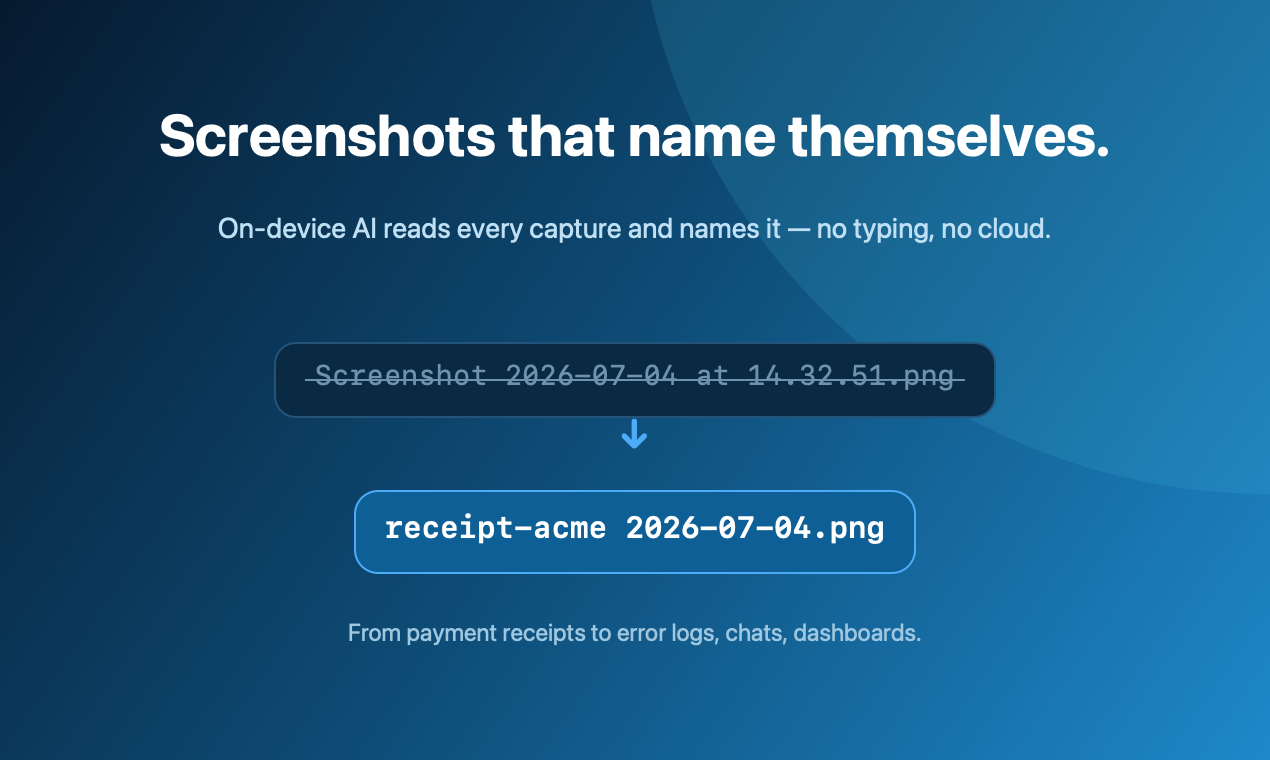
How to Automatically Name Screenshots on a Mac
macOS only timestamps your captures. Get searchable, descriptive filenames automatically — on-device and private.
Read the guide →Practical guides for capturing, naming, annotating & sharing screenshots on your Mac.
macOS only timestamps your captures. Get searchable, descriptive filenames automatically — on-device and private.
Read the guide →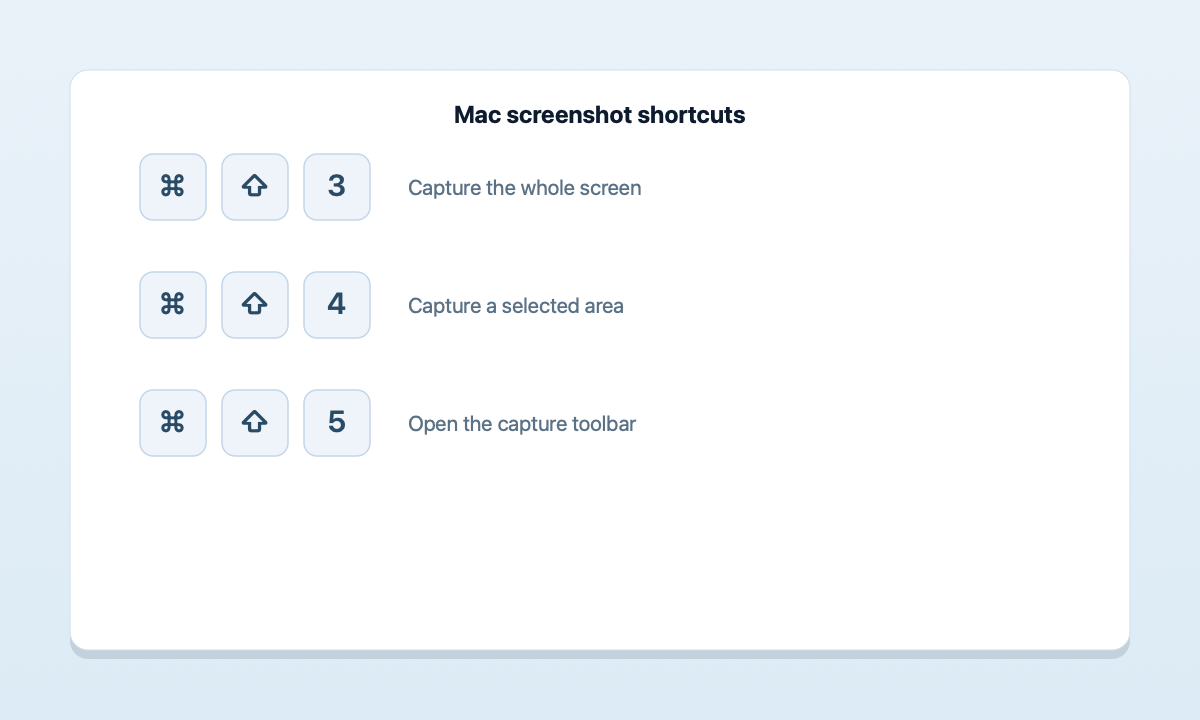
Whole screen, a selected area, a single window, and the capture toolbar — every method, plus where they save.
Read the guide →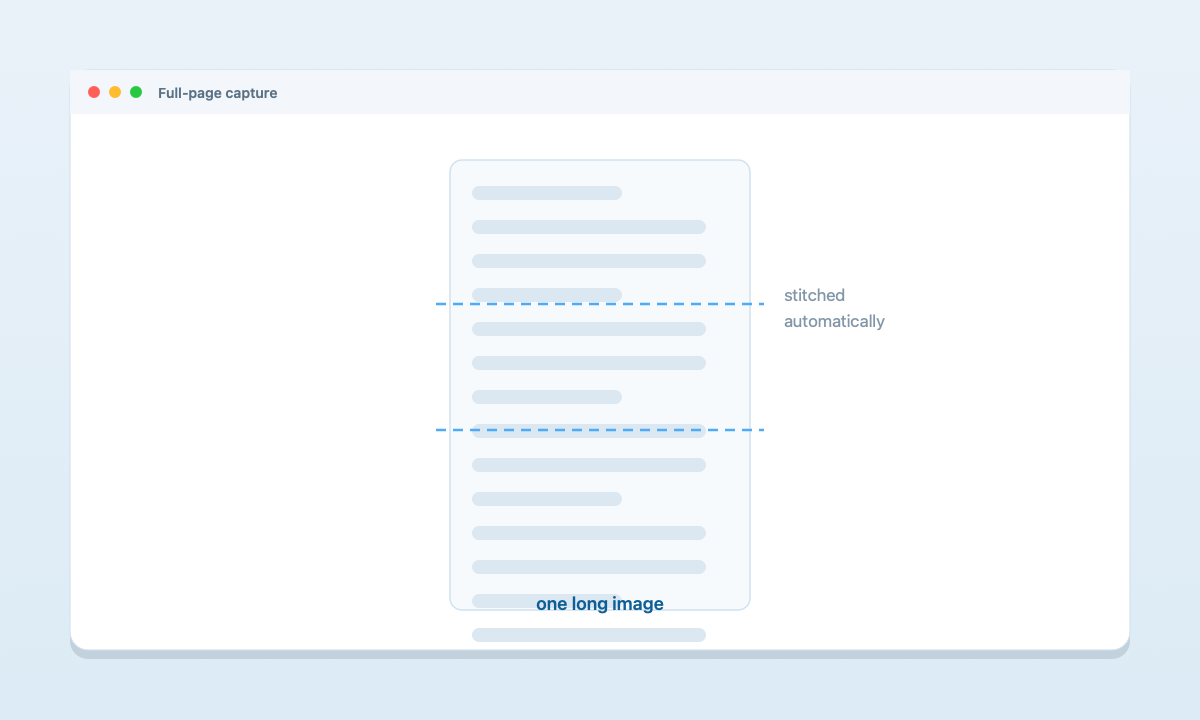
Capture an entire long page, chat, or document as a single tall image.
Read the guide →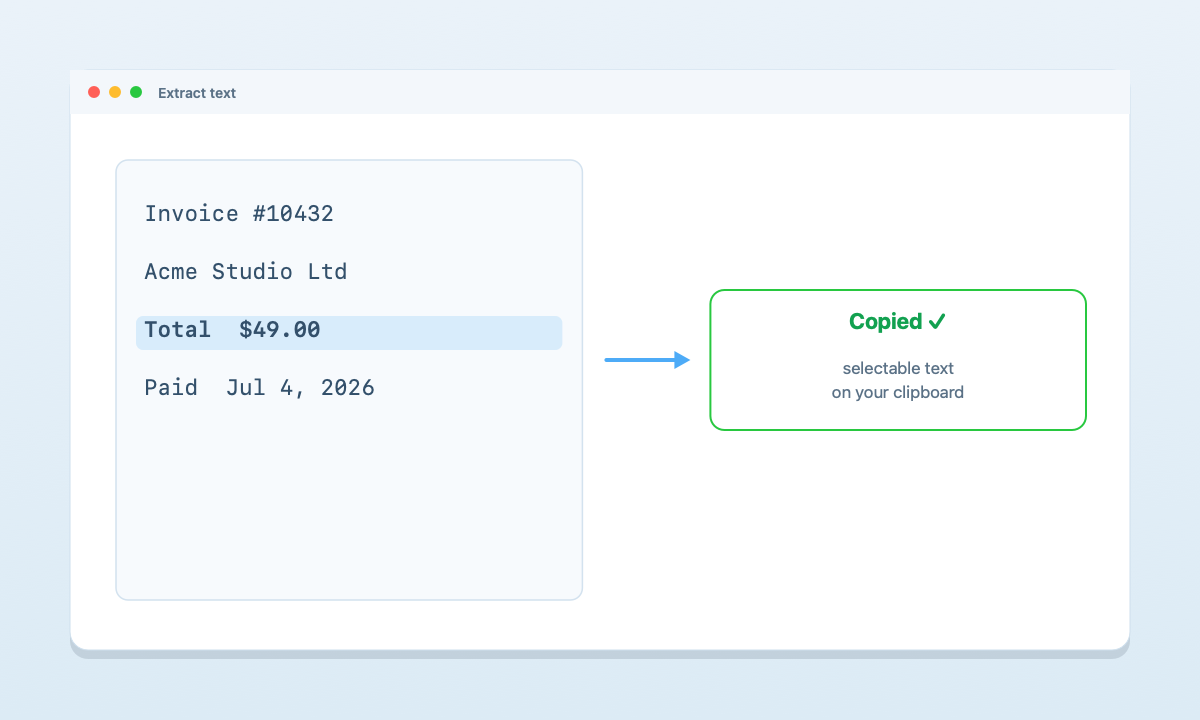
Pull selectable, copyable text out of any screenshot — no cloud, no retyping.
Read the guide →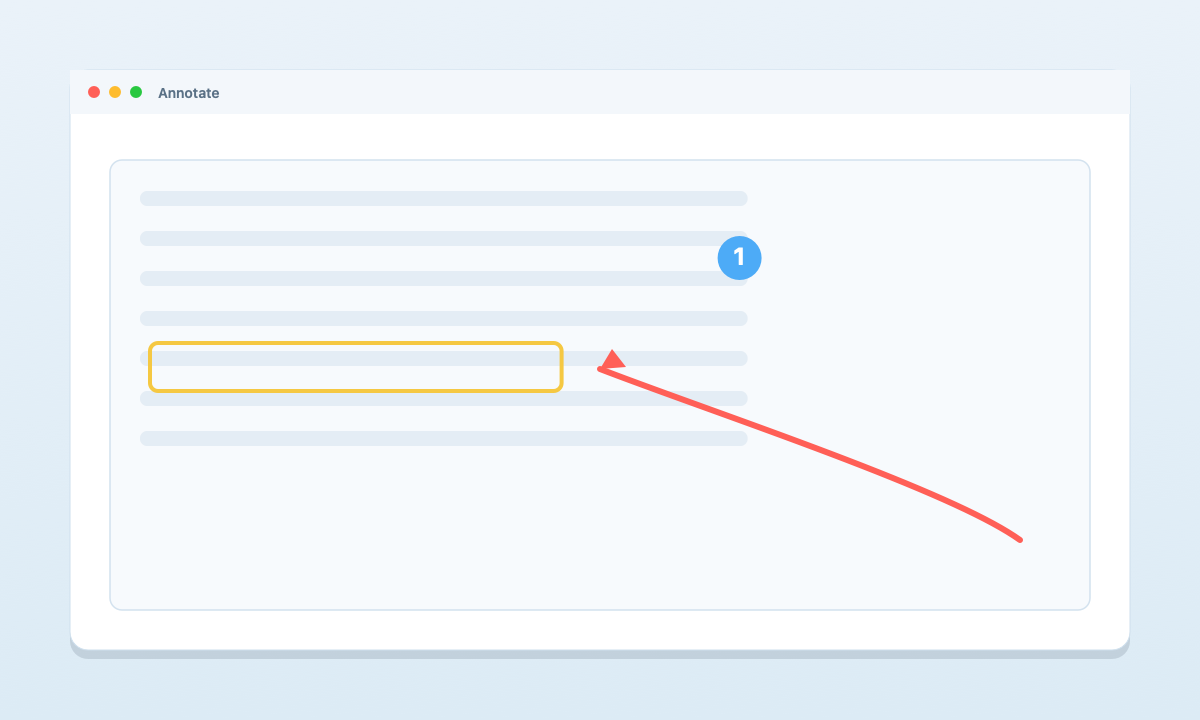
Add arrows, boxes, text, highlights, and blur — the built-in way and a faster one.
Read the guide →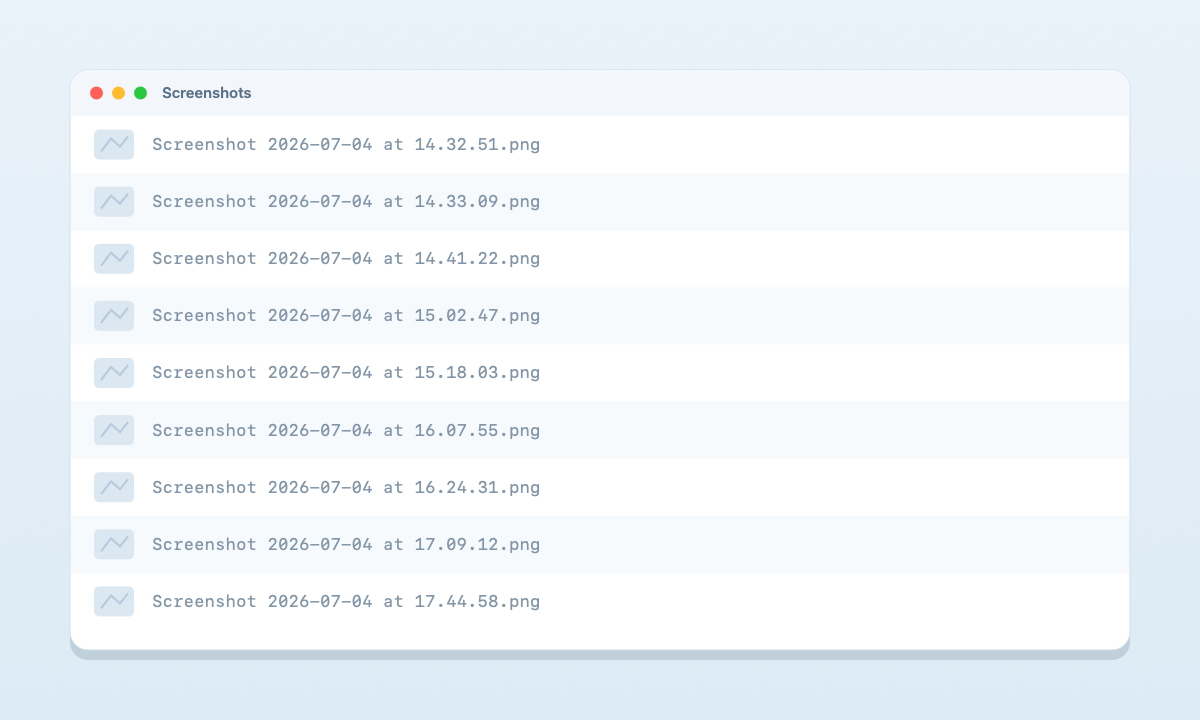
Where they save by default, how to change the folder, and how to actually find them again.
Read the guide →
An honest 2026 comparison on features, price, and privacy — and who each one is for.
Read the comparison →
The best free ways to capture and manage screenshots on a Mac, compared.
Read the roundup →
The top options if you want AI naming, a fuller editor, or different pricing.
Read the roundup →