Where Do Screenshots Go on a Mac?
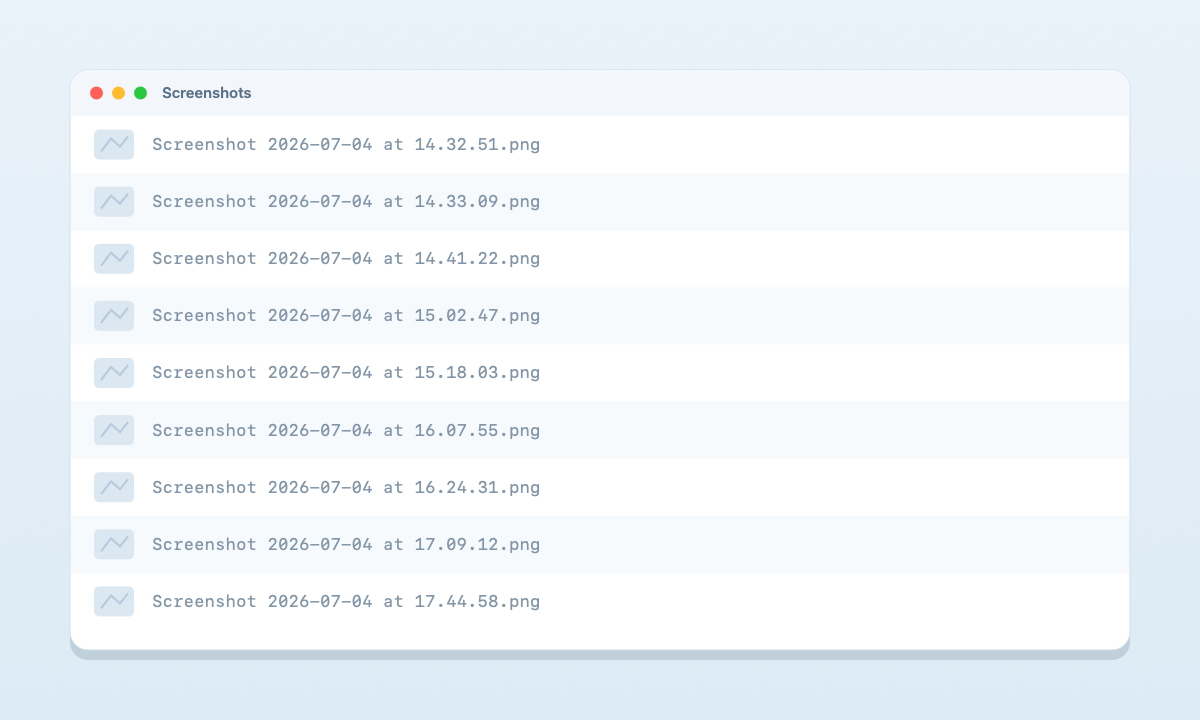
Screenshot 2026-07-07 at 14.32.51.png. You can change where they save with ⌘⇧5 → Options → Save to — and if you can never find them later, it's the timestamp names, not the folder. ScreenDrafter fixes that by naming each shot after what's in it.Where does a Mac save screenshots by default?
On every recent version of macOS, screenshots land on your Desktop. Press ⌘⇧3 (full screen) or ⌘⇧4 (drag an area) and a PNG appears in the top-right of your desktop a second later, named with the date and time you took it — for example Screenshot 2026-07-07 at 14.32.51.png.
If you don't see it there, a few things could be going on: you may have already changed the save location (see below), you might have held Control while capturing (that copies the shot to the clipboard instead of saving a file), or a "cleaner" app may be sweeping your Desktop. But out of the box, the Desktop is the answer.
How to change the screenshot save location
A Desktop full of screenshots gets messy fast. macOS lets you send them somewhere tidier through the built-in Screenshot app:
- Press
⌘⇧5to open the screenshot toolbar. - Click Options in the toolbar.
- Under Save to, pick a destination — Documents, Clipboard, Mail, or Other Location… to choose any folder (for example a dedicated "Screenshots" folder).
Every screenshot you take from then on goes to that folder instead of the Desktop. The change sticks until you set it again.
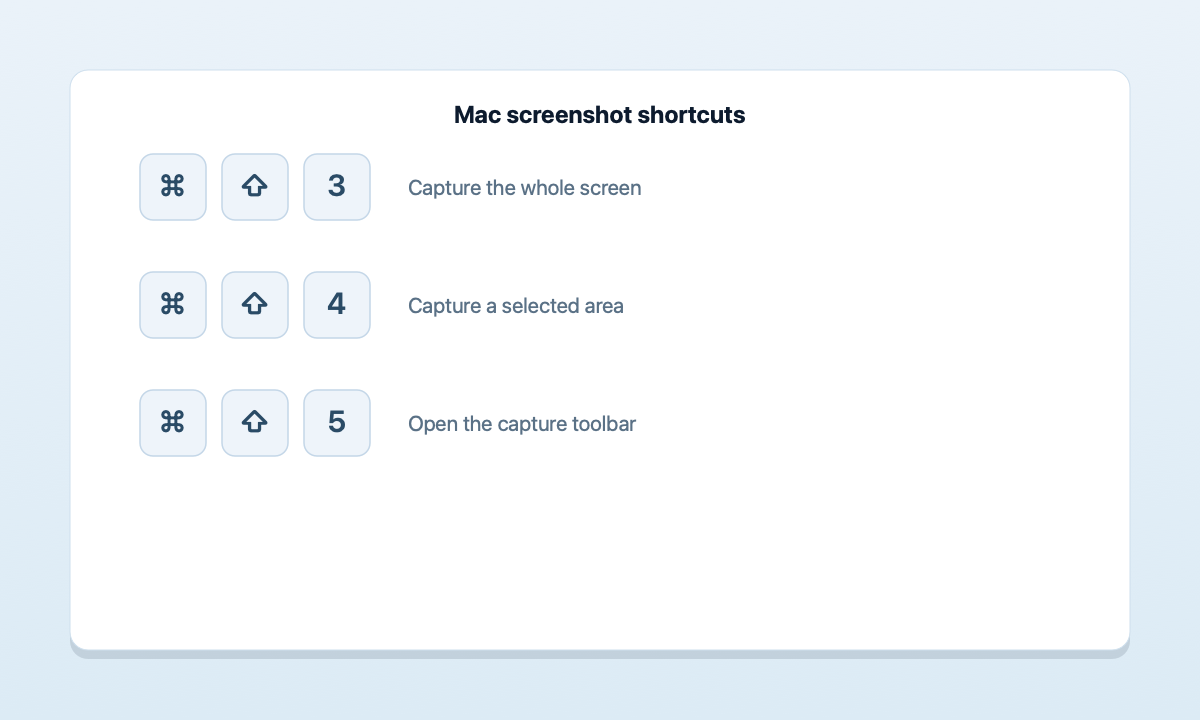
⌘⇧5 toolbar — the "Options" menu is where you set both the save location and the filename prefix.How to change the screenshot name prefix
By default every file starts with the word "Screenshot." You can swap that prefix (but not the timestamp) with a Terminal command:
- Run
defaults write com.apple.screencapture name "Shot" - Then
killall SystemUIServerto apply it.
Now your files read Shot 2026-07-07 at ….png. Handy, but notice what you still can't do: get a name that describes what the screenshot actually shows. It's a new prefix on the same unsearchable timestamp.
Why you still can't find them (and the fix)
Here's the real problem behind "where do my screenshots go?" — even once you know the folder, the names are useless. Screenshot 2026-07-07 at 14.32.51.png tells you nothing about the receipt, the bug, or the chat inside it. Three weeks later, finding one means opening files one by one, because Spotlight has nothing to search on.
ScreenDrafter is a native Mac screenshot app that reads each capture and names it after its contents. A payment receipt saves as receipt-acme 2026-07-07.png, a bug becomes react-type-error …, a chat becomes whatsapp-chat-john … — the instant you save, with no typing.
- Download ScreenDrafter and open it — it sits in your menu bar.
- Capture an area or the full screen, just like you do now.
- Save. ScreenDrafter reads the shot on-device and pre-fills a searchable name. Accept it or tweak it — done.
How it works, and why it's private: ScreenDrafter uses Apple's built-in Vision (on-device OCR) and NaturalLanguage frameworks to read the text and work out what the screenshot is about — entirely on your Mac. Nothing is uploaded, there's no account, and it works with your Wi-Fi off. It also does in-place capture, scrolling capture for long pages, and OCR to copy text straight out of an image.
At a glance
| What you want | How | Result |
|---|---|---|
| Find default screenshots | Look on the Desktop | Yes — timestamped PNGs |
| Change the folder | ⌘⇧5 → Options → Save to | Yes — any folder |
| Change the prefix | defaults write in Terminal | New word, same timestamp |
| Name by content | ScreenDrafter | Yes — searchable, on-device |
Screenshots you can actually find later
Free for 30 days, then a one-time $9 · ~3 MB · no account. Your Mac, your data.
Get ScreenDrafter for MacFAQ
Where do screenshots save on a Mac?
By default, to your Desktop — as a PNG named Screenshot 2026-07-07 at 14.32.51.png. You can change the location in the Screenshot app (⌘⇧5 → Options → Save to).
How do I change where Mac screenshots go?
Press ⌘⇧5, click Options, then pick a folder under "Save to." Choose Other Location… to select any folder you like. New screenshots save there from then on.
Can I make Mac screenshots save to a folder instead of the Desktop?
Yes. Create a "Screenshots" folder, press ⌘⇧5, click Options, choose Other Location… under "Save to," and pick your folder. Every new capture goes there instead of cluttering the Desktop.
Related: How to automatically name screenshots on a Mac → · How to screenshot on a Mac → · more ScreenDrafter guides →