The Best Free Mac Screenshot Tools in 2026
⌘⇧4 / ⌘⇧5) are the best free-forever option for casual capture. Power users should add a dedicated app: ScreenDrafter (free 30 days, then a one-time $9) for on-device AI naming, OCR and scrolling capture, or Shottr (free for personal use) for fast, no-frills annotation. Below: five tools, honest pros and cons, and a comparison.What to look for in a screenshot tool
Everyone's "best" is different, so it helps to know what actually separates a good screenshot app from a mediocre one. When we compared the tools below, these were the things that mattered:
- Capture quality — a pixel-accurate loupe and precise region selection so borders land exactly where you want.
- Annotation — arrows, boxes, blur/redaction, and text that don't fight you. Bonus points for arrows that snap to what's on screen.
- Scrolling capture — grabbing a whole long page or chat in one shot, not five stitched-together pieces.
- OCR — pulling selectable text out of an image, and ideally using it to name the file.
- File management — descriptive names instead of
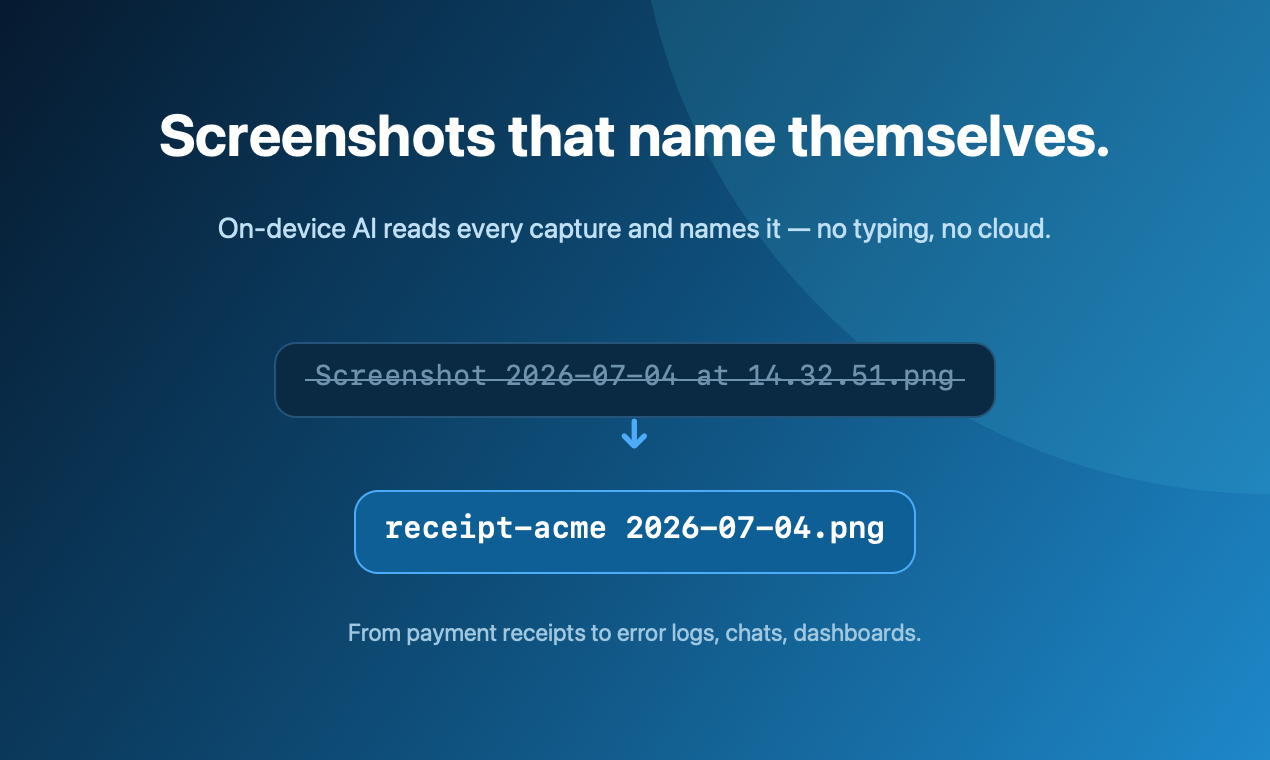
Screenshot 2026-07-07 at 14.32.51.pngtwenty times over. - Privacy — does it process your captures on-device, or upload them somewhere?
- Actual price — "free" can mean free-forever, a time-limited trial, or a free tier with paywalled features. We call that out for each.
The shortlist
Five tools worth your time in 2026, from the zero-install default to purpose-built apps.
1. macOS built-in (⌘⇧3 / ⌘⇧4 / ⌘⇧5) — free forever
You already have this. ⌘⇧3 grabs the full screen, ⌘⇧4 lets you drag a region (or hit Space to grab a window), and ⌘⇧5 opens the toolbar with screen recording and a few options. Every capture drops a thumbnail you can mark up with basic arrows and shapes.
Pros: genuinely free forever, zero install, works offline, and the Live Text feature lets you select text inside any screenshot in Quick Look.
Cons: no pixel loupe, no scrolling capture, thin annotation, no OCR-to-clipboard workflow, and files are saved as unsearchable timestamps. Fine for occasional use; frustrating if you screenshot all day.
2. ScreenDrafter — free 30 days, then one-time $9
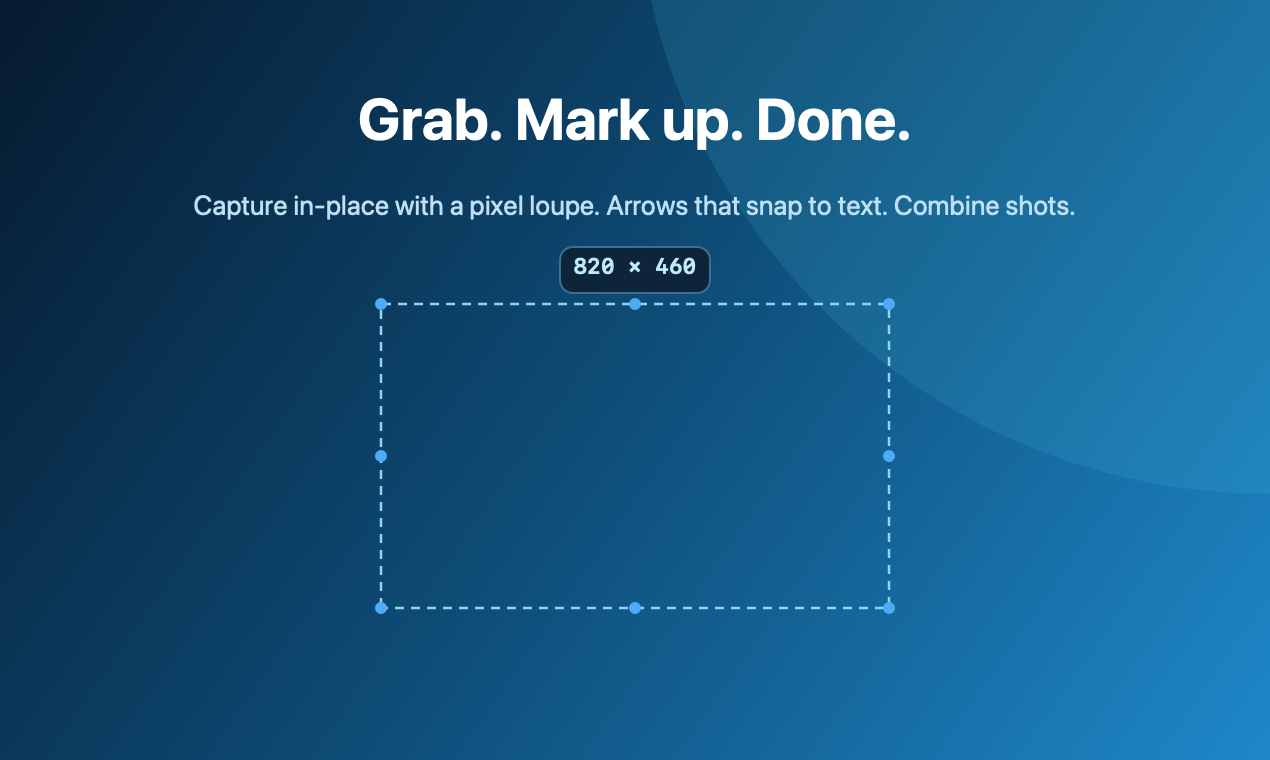
ScreenDrafter is a native Mac app built for people who live in screenshots. It captures in place, gives you a real pixel loupe for exact edges, and its arrows snap to text and UI elements so annotations look deliberate instead of hand-drawn. It can combine several shots into one image, do scrolling capture of long pages, and — the standout — it runs on-device AI to name every file from what's actually in it plus built-in OCR. Quick-share is on the way.
Pros: the naming and OCR run entirely on your Mac with Apple's Vision framework — nothing is uploaded, and it works offline. Scrolling capture, combine, loupe, and smart arrows are all in one app. After the trial it's a one-time $9, not a subscription.
Cons: the free period is a 30-day trial, not free-forever — you'll pay once to keep it. macOS only.
3. Shottr — free for personal use
Shottr earned a loyal following by being fast and tiny. It has a pixel loupe, quick annotation, scrolling capture, and OCR, and it launches instantly. For a lot of people it's the "just works" upgrade over the built-in tools.
Pros: free for personal use, extremely lightweight, quick, and covers most power-user basics including OCR and scrolling capture.
Cons: a commercial license is a paid extra, annotation is capable but fairly manual, and it doesn't do AI-driven file naming — you still name shots yourself.
4. Xnapper — free tier, paid to unlock
Xnapper leans into making screenshots look good: automatic backgrounds, balanced padding, and one-click redaction that detects emails and other sensitive data. It's popular for social posts and docs.
Pros: beautiful output with almost no effort, smart auto-redaction, and built-in OCR.
Cons: the free version is limited and watermark/feature-gated — you'll hit the paywall quickly. It's more a "prettify" tool than an everyday capture-and-manage tool.
5. Flameshot — free and open source
Flameshot is a free, open-source capture tool with a strong in-place annotation toolbar. It's cross-platform and beloved by tinkerers, though on macOS the experience is rougher than the native apps above.
Pros: completely free, open source, no accounts, solid annotation, scriptable via CLI.
Cons: the Mac build is clunkier than Linux, no scrolling capture or AI naming, and setup can require permissions fiddling. Best if free-and-open-source is a hard requirement.
Comparison at a glance
| Tool | Price | OCR | Scrolling capture | AI file naming | Private / on-device |
|---|---|---|---|---|---|
| macOS built-in | Free forever | Live Text only | No | No | Yes |
| ScreenDrafter | Free 30 days · then $9 once | Yes | Yes | Yes | Yes |
| Shottr | Free (personal) | Yes | Yes | No | Yes |
| Xnapper | Free tier · paid unlock | Yes | No | No | Mostly |
| Flameshot | Free / open source | No | No | No | Yes |
"Free" isn't one thing: macOS and Flameshot are free forever, Shottr is free for personal use, ScreenDrafter is a 30-day trial then a one-time $9 (no subscription), and Xnapper gates most of its value behind a purchase.
Our pick
If you take a handful of screenshots a week, the built-in macOS tools are the right answer — they're free forever and already installed. Don't overthink it.
If screenshots are part of your actual work — bug reports, receipts, documentation, long pages — a dedicated app pays for itself fast. Shottr is a great free-for-personal-use choice if you just want speed and OCR. But if you want the file management to be handled for you, ScreenDrafter is our pick: it's the only one here that reads each capture on-device and names the file automatically, on top of the loupe, snapping arrows, combine, scrolling capture and OCR — all private, all offline, and a one-time $9 after the trial rather than another subscription. For a closer head-to-head, see ScreenDrafter vs Shottr vs CleanShot or our Shottr alternative guide.
Try the one that names your screenshots for you
Free for 30 days · ~3 MB · no account · on-device. Then a one-time $9.
Get ScreenDrafter for MacFAQ
What's the best free screenshot app for Mac?
For most people the built-in macOS tools (⌘⇧4 / ⌘⇧5) are the best truly free-forever option and cover casual capture well. If you want speed, a pixel loupe, smarter annotation, OCR, scrolling capture and on-device AI file-naming, a dedicated app is worth it — ScreenDrafter is free for 30 days then a one-time $9, and Shottr is free for personal use.
Is the macOS built-in screenshot tool good enough?
For quick, occasional screenshots, yes — ⌘⇧4 to grab an area and ⌘⇧5 for the toolbar cover the basics and cost nothing. Where it falls short is power use: there's no pixel-accurate loupe, no scrolling capture, weak annotation, no OCR-to-clipboard, and every file is saved as an unsearchable timestamp. If you screenshot all day, a dedicated tool pays for itself.
Are there free screenshot tools with OCR?
Yes. macOS already lets you select text inside any image in Quick Look thanks to Live Text. Among apps, Shottr includes free OCR, and ScreenDrafter runs on-device OCR (Apple Vision) to both extract text and auto-name each capture. All of these read the image locally, so your screenshots aren't uploaded.
Related: more ScreenDrafter guides →