How to Extract Text From a Screenshot on a Mac
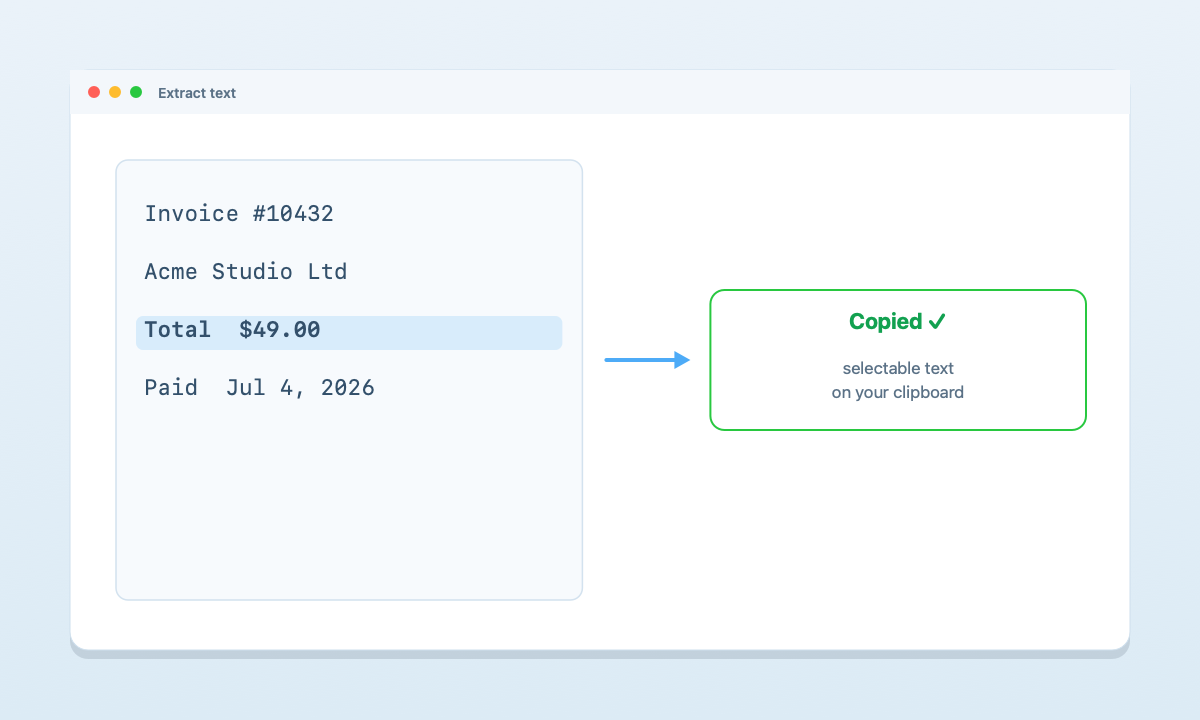
⌘⇧9, drag over any text on screen, and drops it straight on your clipboard — all on-device, nothing uploaded.Does macOS have built-in OCR?
Yes. Since macOS Monterey, Apple bundles a feature called Live Text that recognizes text inside images and photos. Open a screenshot in Preview, Quick Look (select the file and press Space), or the Photos app, and you can often highlight the words in the picture and copy them like normal text.
The catch: Live Text is inconsistent. It doesn't surface in every app, it can miss small or low-contrast text, and it won't run OCR on live screen content — only on an image you've already saved and opened in a supported viewer. When it works, it's great; when it doesn't, you're stuck retyping.
How to use Live Text on a Mac
To pull text out of a screenshot you've already saved:
- Find the screenshot in Finder and press
Spaceto open it in Quick Look (or double-click to open it in Preview). - Move your cursor over the text — it should turn into a text-selection cursor.
- Click and drag to select the words you want, just like selecting text in a document.
- Press
⌘Cto copy, then⌘Vto paste anywhere.
If the cursor won't select anything, Live Text either isn't available in that viewer or couldn't read the text. That's the moment a dedicated OCR tool earns its keep.
The reliable way: OCR any capture with ScreenDrafter
ScreenDrafter is a native Mac screenshot app with a built-in OCR shortcut, so you never have to save a file, open it, and hope Live Text cooperates. You point at the text on screen and it's on your clipboard in a second.
- Press
⌘⇧9from anywhere — a browser, a PDF, a video, an app that won't let you select text. - Drag a box over the area that contains the text you want to grab.
- Paste. ScreenDrafter reads the text on-device and copies it straight to your clipboard — hit
⌘Vto drop it into any document, message, or search bar.
Because it works on whatever is on your screen, you can extract text from images that block selection entirely — error dialogs, screenshots someone sent you, slides in a video, a serial number on a photo. ScreenDrafter also does OCR the moment you take a normal screenshot, so the text is captured whether or not you asked for it.
Is screenshot OCR private?
It depends entirely on the tool. ScreenDrafter runs OCR with Apple's built-in Vision framework — entirely on your Mac. There's no upload, no API call, and no account; it works with your Wi-Fi off, and the text it reads never leaves your device.
Be careful with the "free online OCR" sites that show up first in search results. Many of them work by uploading your image to their server to process it — which means whatever is in that screenshot (an invoice, a private chat, an ID document) lands on someone else's machine. For anything sensitive, an on-device tool is the safe choice.
Comparison at a glance
| Approach | Works on any screen text? | One shortcut? | Private / offline? |
|---|---|---|---|
| macOS Live Text | No — saved images in supported viewers only | No — open, hover, select | Yes — on-device |
| Online OCR sites | Yes | No — upload + copy | No — uploads your image |
| ScreenDrafter | Yes | Yes — ⌘⇧9 | Yes — on-device |
Grab text from any screenshot in one keystroke
Free for 30 days, then a one-time $9 · ~3 MB · no account. On-device OCR.
Get ScreenDrafter for MacFAQ
Can I copy text from a screenshot on Mac?
Yes. Open the screenshot in Preview, Quick Look, or Photos and use Live Text — hover over the words, drag to select, and press ⌘C. If Live Text won't select the text, use ScreenDrafter: press ⌘⇧9, drag over the text, and it's copied to your clipboard instantly.
Is there free OCR on Mac?
Yes. Live Text is built into macOS for free. ScreenDrafter's on-device OCR is free for a 30-day trial, then a one-time $9 — no subscription and no account.
Does OCR work offline?
Yes. Both macOS Live Text and ScreenDrafter use Apple's on-device Vision framework, so text recognition runs locally and works with Wi-Fi off. Web-based OCR sites are the exception — they need a connection because they send your image to a server.
Related: How to take a scrolling screenshot on Mac → · Name screenshots automatically → · all guides