How to Take a Scrolling Screenshot on a Mac
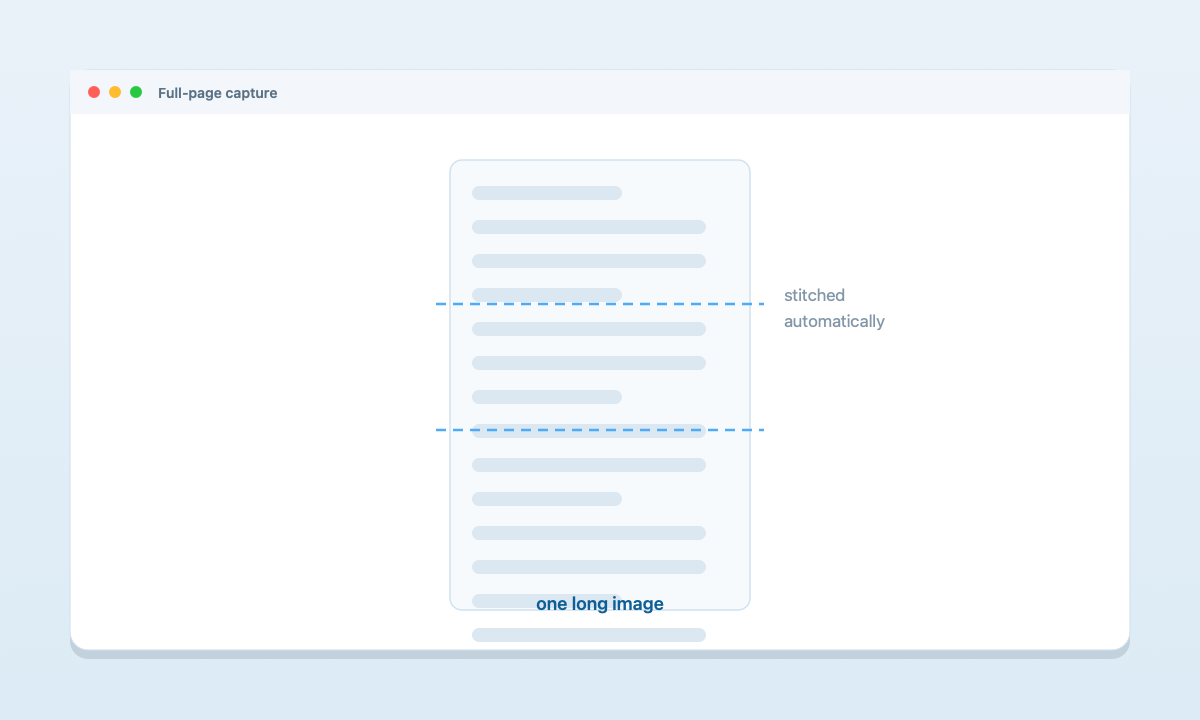
⌘⇧5 only grabs what's visible on screen. To capture an entire long page, chat, or document as one image, use a scrolling-capture tool. ScreenDrafter lets you pick a region, scroll to the bottom, and it stitches everything into a single tall image you can crop, annotate, and save — privately, on-device.Can macOS take a scrolling screenshot?
Not natively. The built-in Screenshot app (⌘⇧5, or ⌘⇧4 for an area) only ever captures the pixels that are actually on your screen at that moment. There's no "full page" or "scroll to capture" mode anywhere in macOS — so a chat thread with 200 messages, a long article, or a tall receipt simply won't fit in a single native screenshot.
People usually work around this by taking several screenshots and joining them by hand, which is slow and leaves visible seams. There are a couple of built-in tricks that help in specific apps, though — let's cover those first.
The built-in workarounds
Safari: export a whole webpage as PDF
If the long thing you want is a webpage, Safari can capture all of it in one shot — as a PDF:
- Open the page in Safari.
- Go to File → Export as PDF…
- Choose a location and save.
Safari renders the entire page top to bottom, not just the visible part. The catch: you get a PDF document, not an image, and it only works in Safari — not Chrome, not a native app, not Messages.
Long documents: print to PDF
For a multi-page document, email, or anything with a Print dialog, you can use File → Print (⌘P), then click the PDF ▾ dropdown at the bottom-left and choose Save as PDF. This captures the full document across pages. Again, the output is a paginated PDF — handy for records, but not a single continuous image you can annotate or drop into a chat.
So the built-in routes work, but only in some apps, and they hand you a PDF rather than a screenshot. If you actually want a single tall image of a scrolling chat, feed, or in-app view, you need a real scrolling capture.
The easy way: scrolling capture in ScreenDrafter
ScreenDrafter is a native Mac screenshot app with a dedicated scrolling capture that stitches a long, scrolling view into one continuous image — no seams, no manual joining, and it works in any app, not just Safari.
- Start a scrolling capture. Open ScreenDrafter from the menu bar, choose Scrolling Capture, and drag to select the region — a window, a chat pane, or a document column.
- Scroll to the end. Scroll from the top to the bottom of the content. ScreenDrafter tracks the movement and stitches each frame together as you go.
- Crop, annotate, save. When you reach the end, the full-length shot opens as one tall image — ready to crop and mark up, then save with a searchable, AI-suggested name.
Because the result is a normal image (PNG or JPEG), you can drop it straight into a message, a doc, or a ticket — no PDF conversion step, and it works whether you're capturing a website, a Slack thread, a spreadsheet, or a long settings screen.
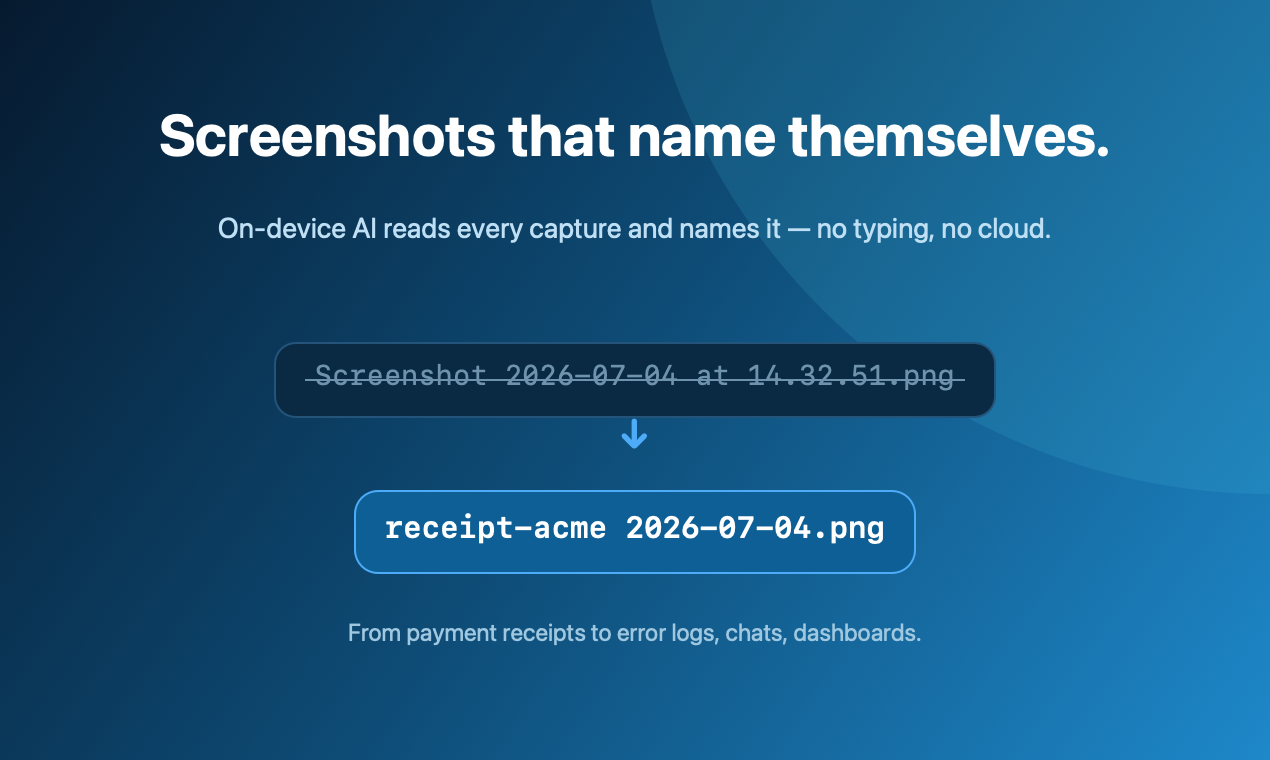
The naming and text extraction run entirely on your Mac using Apple's Vision and NaturalLanguage frameworks — the same on-device engines behind pulling text out of a screenshot. Nothing is uploaded, so even a long capture of a private conversation stays on your device.
Comparison at a glance
| Approach | Whole page in one go? | Output | Works everywhere? |
|---|---|---|---|
| Safari "Export as PDF" | Yes | PDF document | No — Safari only |
| Screenshot then crop / join | No — manual | Image (with seams) | Yes, but tedious |
| ScreenDrafter | Yes — auto-stitched | Single tall image | Yes — any app |
Capture the whole page in one shot
Free for 30 days · ~3 MB · no account. Your Mac, your data.
Get ScreenDrafter for MacFAQ
Can you screenshot a whole webpage on Mac?
Not with the built-in tool (⌘⇧5), which only grabs the visible area. Safari can export a full page as a PDF (File → Export as PDF), but that's a document, not an image. To get an entire scrolling webpage as a single image, use a scrolling-capture tool like ScreenDrafter.
How do I screenshot a long chat or conversation?
macOS won't stitch a long thread on its own. With ScreenDrafter you select the chat area, scroll from the first message to the last, and it joins every frame into one tall image — no cropping or manually combining multiple shots.
Does a scrolling screenshot save as an image or PDF?
It depends on the method. Safari's "Export as PDF" and print-to-PDF give you a PDF. A scrolling-capture tool like ScreenDrafter gives you a single tall PNG or JPEG image you can crop, annotate, and share like any other screenshot.
Is a scrolling screenshot private on a Mac?
With ScreenDrafter, yes — capture, stitching, OCR, and naming all run on-device with Apple's Vision and NaturalLanguage frameworks. Nothing is uploaded and it works offline.
Related: more ScreenDrafter guides →