The Best Shottr Alternatives for Mac in 2026
Why look for a Shottr alternative?
Shottr is legitimately one of the best Mac screenshot tools around: tiny, fast, free for personal use, with scrolling capture, OCR, pixel measuring, and quick annotation. If it already does everything you need, there's no reason to switch. Most people who go looking for an alternative want one specific thing Shottr doesn't do:
- AI file-naming — Shottr still saves timestamped filenames; you can't get a name based on what the shot actually shows.
- A richer annotation editor — more shapes, layers, backgrounds, and built-in screen recording.
- Beautified screenshots — padded backgrounds and window framing for marketing or docs.
- Different pricing or licensing — a commercial license, or a one-time purchase instead of free-with-donations.
- Active development — steady updates and support for the newest macOS.
Here are the alternatives worth considering, each with an honest take on where it fits.
The best alternatives
1. ScreenDrafter — on-device AI naming + OCR + scrolling capture
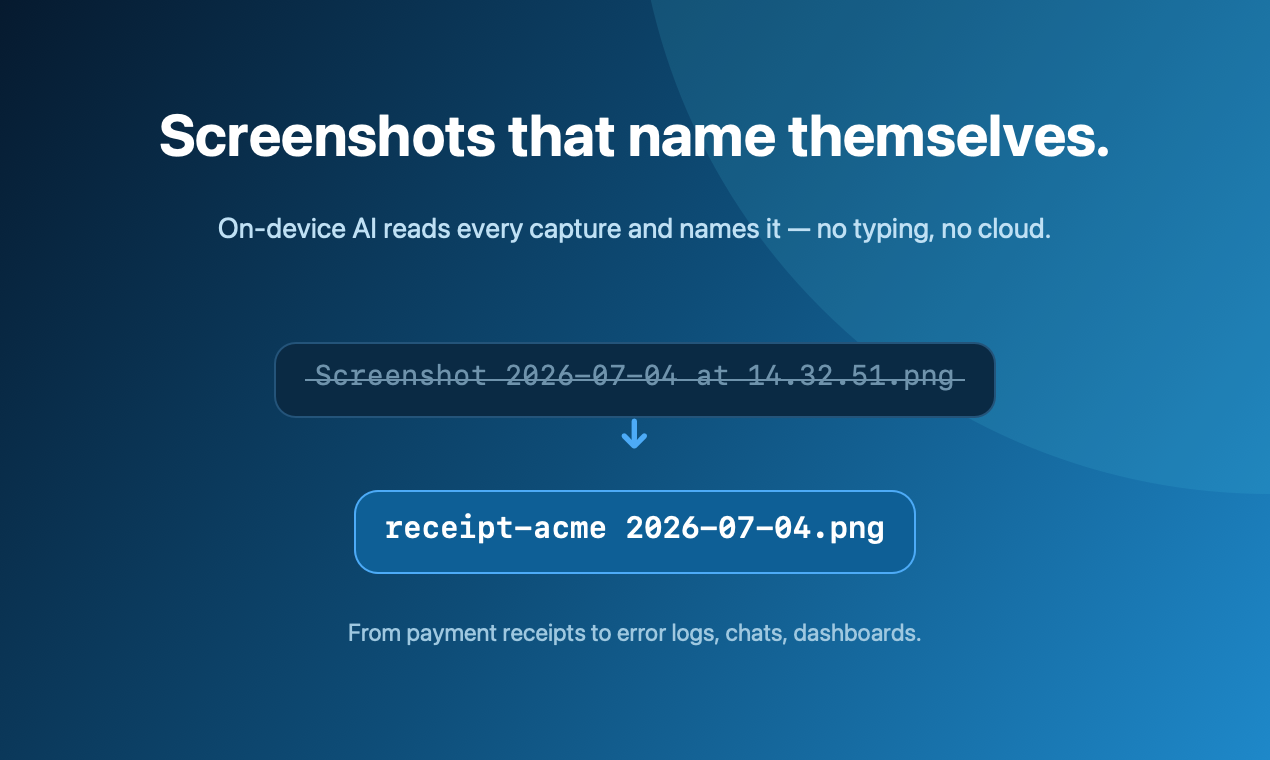
ScreenDrafter is a native Mac screenshot app built around one idea Shottr doesn't touch: it reads each capture and names it for you, on-device. A payment receipt saves as receipt-acme 2026-07-07.png, a bug becomes react-type-error … — no typing, no timestamps to decode later. It also does in-place capture, arrows that snap to text, combining multiple shots, scrolling capture, and OCR, with quick-share on the way.
Pros: the only one here with automatic AI naming; fully private (Apple Vision + NaturalLanguage run locally, nothing uploaded, works offline); tiny (~3 MB); one-time $9 after a free 30-day trial — no subscription.
Cons: newer, so its annotation editor is leaner than CleanShot X's; no screen recording yet; quick-share is still coming.
Best for: anyone drowning in un-searchable screenshots who wants them named automatically and privately.
2. CleanShot X — the polished, feature-rich all-rounder
CleanShot X is the most complete annotation-and-recording suite on the Mac. Scrolling capture, GIF and video recording, a deep editor with backgrounds and blur, a self-hosted cloud, and a scrollable "all-in-one" capture bar. It's the closest thing to a professional creative tool in this space.
Pros: huge, well-designed feature set; excellent annotation; screen recording built in.
Cons: heavier than Shottr; pricier — a one-time license plus a subscription if you want the cloud; no AI file-naming.
Best for: creators and teams who annotate and record all day and want the deepest editor.
3. Xnapper — beautified screenshots for marketing
Xnapper is focused on making screenshots look good: automatic padding, gradient backgrounds, balanced framing, and one-click text redaction. It also does OCR. If your screenshots end up in a landing page, a tweet, or a deck, this is the specialist.
Pros: gorgeous output with almost no effort; smart auto-balancing; quick redaction.
Cons: narrower than Shottr for everyday capture; paid; not built around fast in-place annotation.
Best for: founders, marketers, and anyone publishing polished screenshots.
4. macOS built-in — the free baseline
Before you install anything, remember the Mac already ships a capable tool: ⌘⇧5 gives you area, window, and full-screen capture, plus screen recording, a save-location picker, and a quick markup editor. It costs nothing.
Pros: free, always there, zero setup, private.
Cons: timestamp-only filenames; no scrolling capture, no OCR, and a bare-bones editor.
Best for: light users who capture occasionally and don't need naming, OCR, or scrolling.
Comparison at a glance
| App | AI naming | OCR | Scrolling capture | Private / on-device | Pricing |
|---|---|---|---|---|---|
| ScreenDrafter | Yes | Yes | Yes | Yes | Free 30 days, then $9 once |
| Shottr | No | Yes | Yes | Yes | Free (personal) |
| CleanShot X | No | Yes | Yes | Optional cloud | Paid (license + optional sub) |
| Xnapper | No | Yes | No | Yes | Paid |
| macOS built-in | No | No | No | Yes | Free |
Which should you choose?
Keep it simple:
- Happy with Shottr? Stay. It's excellent, and switching for its own sake isn't worth it.
- Want your screenshots named for you, privately? ScreenDrafter — it's the only one that does on-device AI naming, and it's a one-time $9.
- Want the deepest editor and screen recording? CleanShot X.
- Want beautiful, publish-ready shots? Xnapper.
- Just need occasional captures? The built-in macOS tool is already on your Mac.
Screenshots that name themselves
Free for 30 days, then $9 once · ~3 MB · no account. Your Mac, your data.
Get ScreenDrafter for MacFAQ
Is there a free Shottr alternative?
Yes. The built-in macOS screenshot tool (⌘⇧5) is completely free and covers the basics. ScreenDrafter is free for 30 days, then a one-time $9 — no subscription. Shottr itself is free for personal use, so if price is your only concern you're already covered; people usually switch to gain a feature Shottr lacks, like on-device AI naming.
What's the best Shottr alternative with OCR?
Shottr, CleanShot X, and ScreenDrafter all do OCR. ScreenDrafter goes further — it uses that on-device OCR to name each screenshot by its contents (a receipt becomes receipt-acme.png), all locally with Apple's Vision framework, nothing uploaded.
Is Shottr the best Mac screenshot app?
Shottr is genuinely one of the best — fast, light, and free for personal use, with scrolling capture and OCR. But "best" depends on your need: CleanShot X for the deepest editor and recording, Xnapper for beautified shots, and ScreenDrafter for screenshots that name themselves privately on-device.
Related: ScreenDrafter vs Shottr vs CleanShot X → · Best free Mac screenshot tools → · more ScreenDrafter guides →